From one machine format to another
Open the design
Download the files below and unzip them. Add the Samples folder to the Satinsmith library, or choose File → Open…, then double-click Leaf.pes. Converting never changes this original file.
Open the export sheet
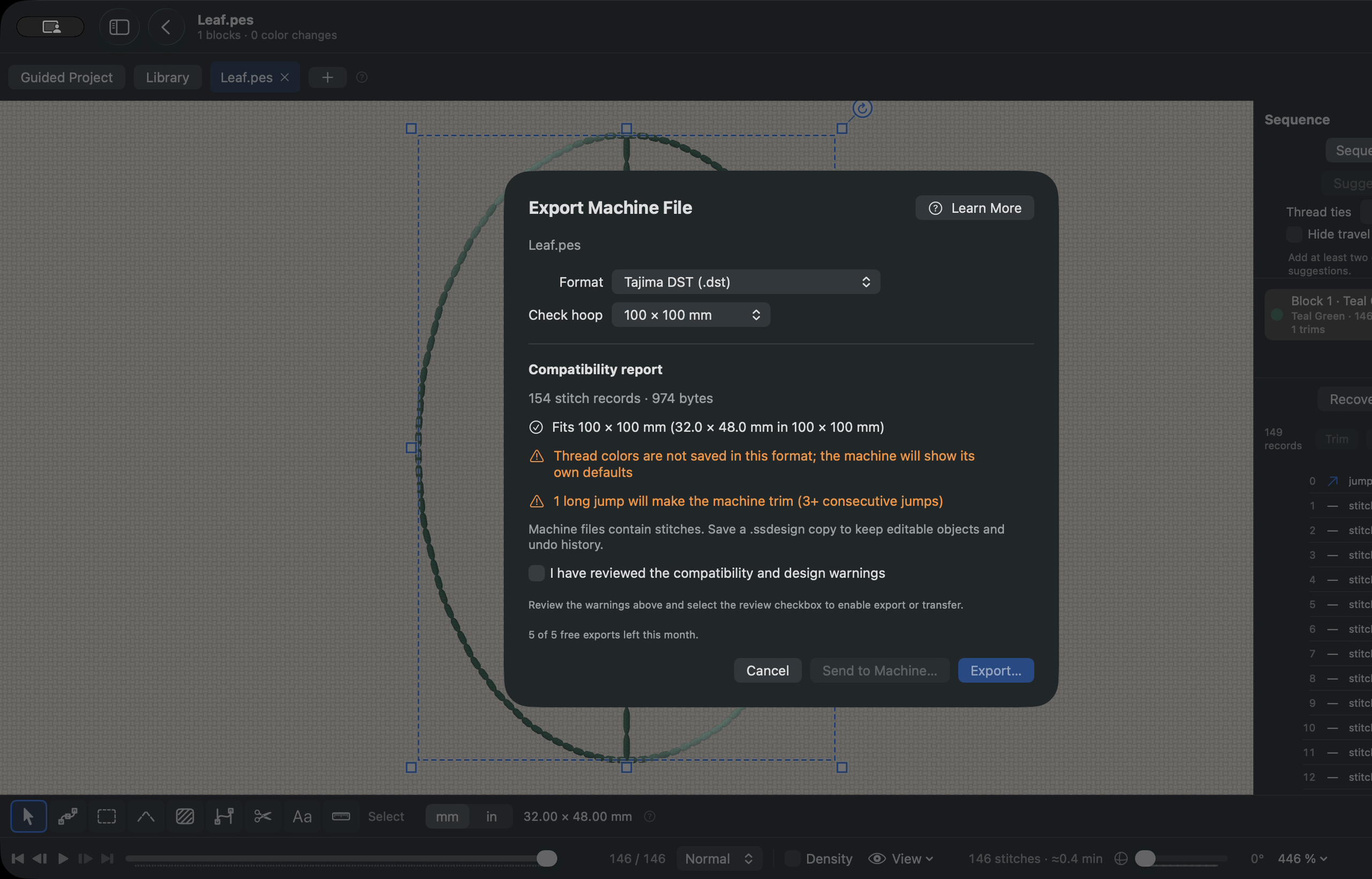
Choose File → Export Machine File… (⇧⌘E). Under Format, choose the format your machine reads; its manual lists them, and the format guides show which machines commonly use which format. For this lesson, choose Tajima DST.
Read the compatibility report
Before exporting, read the report. For DST it says thread colors are not saved and the machine will show its own defaults. Other formats can report long stitches split to the format's limit, trims or stops the format cannot store, or colors matched to a machine's fixed palette. Set Check hoop to your hoop; the leaf fits 100 × 100 mm.
Export
Tick “I have reviewed the compatibility and design warnings”, choose Export… and save into the Samples folder so the library picks up the new file. On the Free plan the sheet shows how many of this month's five exports are left.
Compare the result
Open the new Leaf.dst. Its shape and size match the PES; its color can differ because DST has no thread colors to keep.
Try a second format
Open Leaf.pes again and export it as Janome JEF. Compare its report with the DST report: JEF has no trim command, for example, so the report says what it dropped before anything is written.
Many files at once
With Studio or higher, select several designs in the library and choose Convert Selected Designs…. It writes to a folder you choose, keeps the originals, never replaces an existing file and reports on each one.
What to look for
Leaf.dst and Leaf.jef appear beside the original Leaf.pes, each 32 × 48 mm with the same outline and vein. The DST shows the machine's default color because DST stores no thread colors. The original PES is unchanged. With Free access, each export uses one of this month's five.
A preview helps you understand the file. It does not prove how thread will sew on fabric. These samples have not been physically sewn.
If something looks wrong
Export… stays disabled
Tick the review checkbox under the report. It appears only when the report has warnings.
The new file is not in the library
Save exports inside a library folder, or choose Rescan Library (⇧⌘R). Clear any search or tag filters.
The colors changed
That is expected for DST. If your machine reads PES, JEF or VP3, those formats keep thread colors.
Which PES version?
Keep “Version 6 — thread names and colors” unless a very old machine refuses the file; then try Version 1. Both carry the same stitches.
No free exports left
The Free allowance of five successful exports resets each calendar month. Paid plans have unlimited exports.
Video companion
Turn a PES file into DST and JEF, read what the conversion changes, and check the result. Recorded in Satinsmith 1.1.0 (build 10), with a synthetic American English voice and captions.
Watch on YouTube · All lesson videos · Written steps · Pressing play loads the video from YouTube (youtube-nocookie.com); see Privacy.
Read the transcript
Got a design in one embroidery format and a machine that wants another? In this lesson, we’ll turn a PES file into DST and JEF, read what the conversion changes, and check the result. It works in the Free tier, and the practice files are linked beneath this video. Satinsmith runs on Apple-silicon Macs with macOS fourteen or later. Unzip the lesson pack and add its Samples folder to the library. Double-click Leaf.pes to open it. This is the file we’ll convert; the original stays exactly as it is. Open File, Export Machine File. Under Format, choose the one your machine reads. Your machine’s manual has the list, and the format guides on the lesson site show which machines commonly use which format. We’ll choose DST. Before you export, read the compatibility report. DST doesn’t store thread colors, so the machine will show its own. Set Check hoop to your hoop size: this leaf fits a hundred by a hundred millimetres. Tick the box to confirm you’ve reviewed the report, then choose Export and save into the Samples folder. On the Free plan, the sheet shows how many of this month’s five exports are left. The new DST appears in the library. Open it next to the PES: the shape and size match, and only the color is different, because DST has none to keep. Formats differ in what they can store. Export the leaf again, this time as JEF, and compare the report. Some formats limit stitch length or colors, or have no trims or stops, and the report tells you what changed before anything is written. If you have a whole folder to convert, select the designs and choose Convert Selected Designs. That needs Studio. It keeps your originals, never replaces an existing file, and reports on each one. One thing conversion doesn’t do is change the design itself: small lettering stays small, so read the design checks too. The written lesson and files are linked below. If you use Windows, these PES files open in compatible software, although the Satinsmith steps need a supported Mac.
Learning on Windows
The PES practice files open in compatible Windows embroidery software, which has its own conversion tools. The Satinsmith controls above require an Apple-silicon Mac with macOS 14 or later. No Windows app release date is promised.