From a folder to a useful library
Unzip and keep the sample folder
Download the files below, then double-click the ZIP in Finder. Keep the extracted folder somewhere convenient. Satinsmith indexes files where they are; it does not move them into a hidden library.
Add the folder to Satinsmith
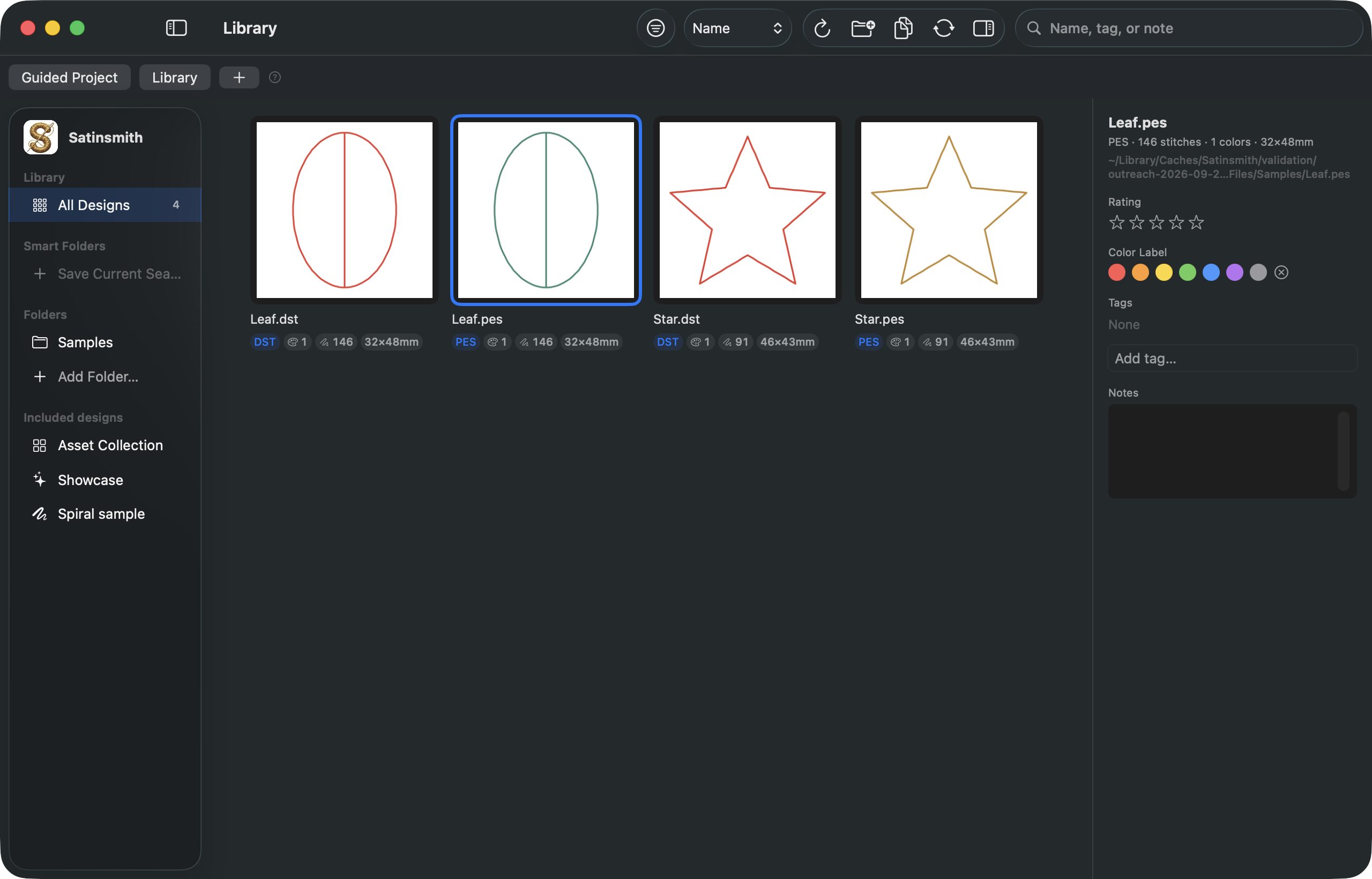
Open Satinsmith and choose Add Folder in the library sidebar. Choose the extracted Samples folder and allow access when macOS asks. Wait for four design cards: Leaf.pes, Leaf.dst, Star.pes and Star.dst.
Find and inspect the leaf
Type Leaf in the library search field. Select Leaf.pes and inspect its size, stitch count and color count. Clear the search to see all four designs again. PES and DST copies of the same motif are intentional format comparisons.
Watch the design draw
Double-click Leaf.pes to open it. Use stitch playback to follow the outline and vein, and zoom to inspect the stitches. Open Leaf.dst as well. DST does not preserve the original thread RGB colors, so a different preview color does not mean the geometry changed.
Organize without changing stitches
Return to the library and select Leaf.pes. In the Inspector, enter practice in Add tag and press Return; give it a star rating if useful. Choose the practice tag in the sidebar to find it again. Tags and ratings organize the library; they do not rewrite the source machine file.
Check your result
Clear the tag and text filters. You should see four designs, be able to open both file formats, and find the tagged leaf again. No editing, export or paid plan is needed for this lesson. Keep the sample folder in place so the library can continue to find it.
What to look for
The leaf is 32 × 48 mm; the star is approximately 45.6 × 43.4 mm. Both are simple running-stitch outlines. Matching geometry can look different in PES and DST because DST does not carry the original RGB thread color.
A preview helps you understand the file. It does not prove how thread will sew on fabric. These samples have not been physically sewn.
If something looks wrong
No designs appear
Extract the ZIP first and add its Samples folder. Allow access if macOS asks. Clear text, tag, rating and size filters; reconnect or re-add a moved folder.
The colors do not match
DST omits the original RGB thread colors. Compare the shape and size; use PES to see the selected sample colors.
I see an editing or export upgrade
This lesson only uses the Free library and preview tools. Return to the library to continue; editing or exporting is not part of this exercise.
Video companion
Recorded in Satinsmith 1.0.0 (build 9). The narration is a synthetic American English voice. Captions are included, and the video plays from this site without contacting a third party. Download the video (9 MB).
Read the transcript
Have a folder of embroidery files and want to see what is inside? In this lesson, we’ll add four practice files to Satinsmith, find a design, watch its stitches, and organize it so it’s easy to find again. Everything we use here is in the Free tier. You can download the exact files from the link beneath this video. Satinsmith runs on Apple-silicon Macs with macOS fourteen or later. Download the lesson pack and unzip it. Inside, the Samples folder contains a leaf and a star, each saved as PES and DST. Keep that folder somewhere convenient, because Satinsmith leaves the files where they are. In the library, choose Add Folder, select Samples, and allow access if macOS asks. After the scan, you’ll see four design cards. Type Leaf in search. Select the PES copy and look at its details: the design is thirty-two by forty-eight millimetres. These two cards represent the same shape in two formats. They are intentional comparisons, so you don’t need to delete either one. Double-click the PES file to open its preview. Play through the stitches or move through the sequence at your own pace. The outline and centre vein become easier to understand as they draw. Now compare the DST copy. DST does not preserve the original R G B thread color, so its preview can use a different color even when the geometry matches. A screen preview helps explain the file; it does not prove how the design will sew. Return to the library and select the leaf. In the Inspector, enter practice in Add tag, then press Return. You can also give it a star rating. Choose the practice tag in the sidebar to find the file again. These library labels organize your files without rewriting their stitches. Clear the search and tag filters. You should see all four files again, and you can reopen either format whenever you need it. If your library looks empty, check that you unzipped the pack, added the Samples folder, and cleared any filters. The written lesson and files are linked below; no signup or purchase is needed. If you use Windows, you can explore these PES and DST examples in compatible software, although the controls will differ. The Satinsmith steps in this video require a supported Mac.
Learning on Windows
Explore the PES and DST examples in compatible Windows embroidery software. This pack has no .ssdesign projects. The Mac controls above require Satinsmith; no Windows release date is promised.