Keep the lettering editable
Download and open the starter
Unzip the pack. Add Samples to the library, then open Name-starter.ssdesign. Use the .ssdesign starter rather than its PES or DST reference: it retains editable lettering. Studio or higher, or a valid evaluation covering Studio, is required to change the name.
Edit the name
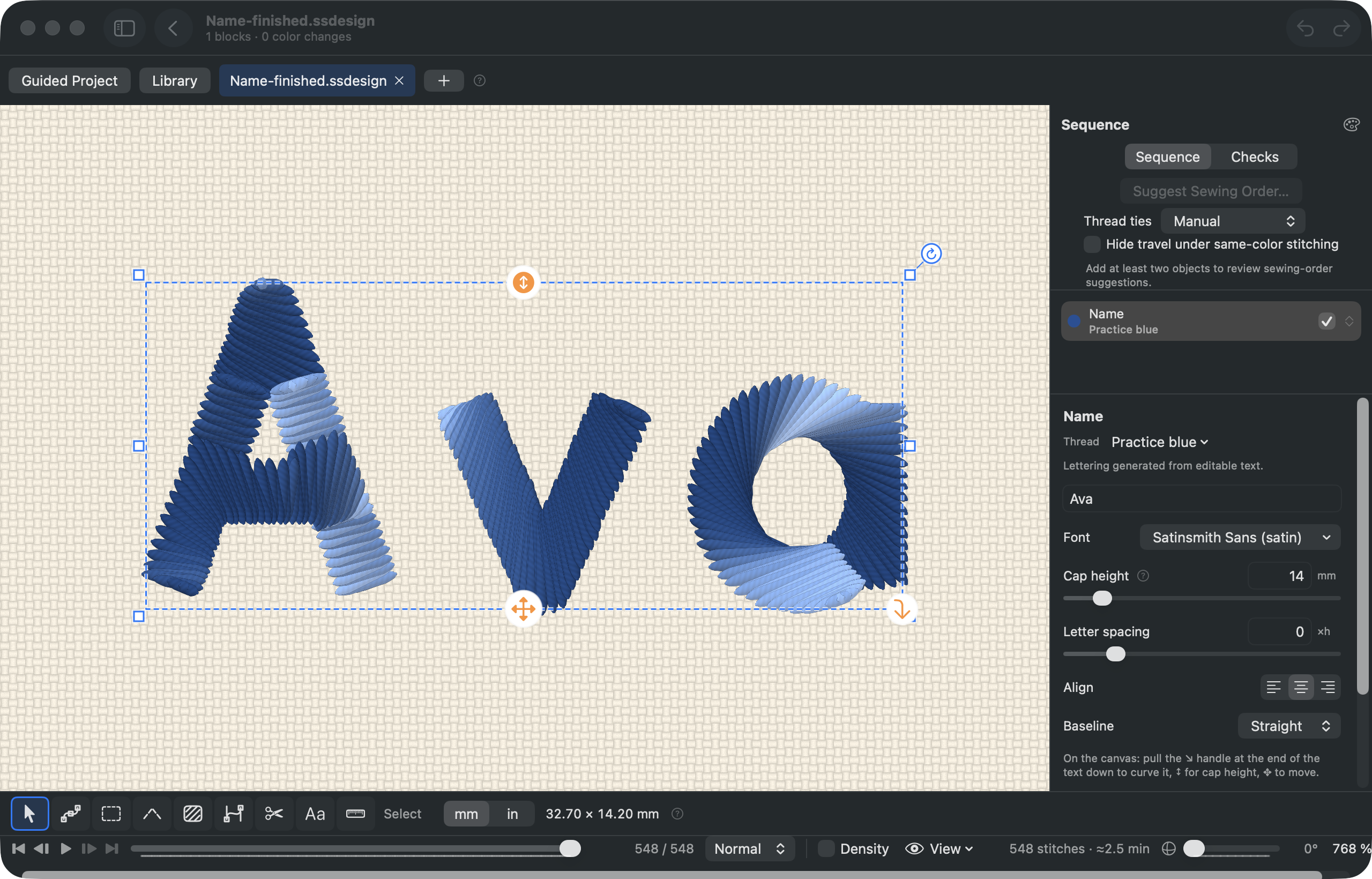
Select the Name object in the Sequence list. In the Inspector’s Text field, replace Emma with Ava and press Return. Keep Satinsmith Sans (satin), Cap height 14 mm and centered alignment. The finished reference uses the same settings.
Inspect the new stitches
Fit the design in the canvas and play through the stitches. Check the letters, their spacing and travel between them. Compare Name-finished.ssdesign if needed. Changing text regenerates stitches; it does not simply stretch the old machine file.
Save your editable copy
Use Save As to save a new .ssdesign outside the supplied pack. Close and reopen that copy and confirm it still says Ava. Keep the original starter for another attempt. A machine export is a separate file and does not replace your editable project.
Review and export PES
Open Export and select PES and a hoop appropriate to your intended machine. Review the design checks and compatibility report, including dimensions, colors and any warnings. Only acknowledge warnings you understand. Export a new file; Free and evaluation users have five successful exports per calendar month, while purchased tiers have unlimited exports.
Reopen your own export
Add the export folder to the library and open the PES file you just wrote. Compare the name, dimensions, color and stitch order with your saved project. The supplied PES/DST references are there if you cannot export yet. DST does not preserve the selected RGB colors. This is software practice, not sew-out approval.
What to look for
Name-starter contains one editable lettering object: Emma at 14 mm in Satinsmith Sans (satin). Name-finished contains Ava at the same height. The reference export is a comparison, not evidence that your edited design has been exported. Longer names may need a different size or hoop.
A preview helps you understand the file. It does not prove how thread will sew on fabric. These samples have not been physically sewn.
If something looks wrong
I cannot change the lettering
Confirm that you opened Name-starter.ssdesign and that Studio or a suitable evaluation is active. The bundled Showcase has its own temporary practice exception; downloaded files do not inherit it.
The exported file has no editable text
PES and DST hold stitches. Reopen your .ssdesign copy to change letters and generate a fresh export.
The export allowance is used up
Continue inspecting and saving the editable project and compare the supplied reference files. Evaluations keep the Free export allowance; purchasing a tier unlocks unlimited exports.
Video companion
Recorded in Satinsmith 1.0.0 (build 9). The narration is a synthetic American English voice. Captions are included, and the video plays from this site without contacting a third party. Download the video (14 MB).
Read the transcript
Here is Ava as embroidery, with the name still editable. We’ll start with Emma, change the letters, save a project we can revise, and check a separate machine export. The original practice files and written steps are linked beneath this video. The files are free to download; editing uses Studio or a valid evaluation covering Studio. The practice pack contains starter and finished projects, along with reference machine files. After unzipping it, add the Samples folder to your library. Here are those files in Satinsmith. Open Name-starter dot .ssdesign. That extension matters: the project contains lettering, while the PES and DST references contain stitches. If you want to change the letters, start with the project. This walkthrough uses Satinsmith on an Apple- silicon Mac with macOS fourteen or later. Select Name in the Sequence list, then double- click the lettering to edit it in place. Replace Emma with Ava and press Return. Keep the built-in Satinsmith Sans satin font, fourteen-millimetre cap height, and centered alignment. Notice how the word changes width. We are generating a new set of letter stitches, rather than stretching the old name. Longer names need a fresh size and hoop check. Play through the stitches. Look at the letter spacing and the travel between letters, and read any design warnings. Then use Save As to keep a new editable project. Close and reopen that copy to confirm Ava is still there. Keep your starter untouched so you can try another name later. The finished reference in the pack helps you compare settings; it does not replace saving your own work. Open Export, choose PES, and check the hoop and compatibility report. Review the warnings before acknowledging them. Export a new file, then add its folder to the library and open it. Compare the letters, dimensions, color and stitch order with your project. The machine file is a separate result: to change the name again, return to your .ssdesign copy. Evaluations retain the Free allowance of five successful exports per month. Purchased tiers have unlimited exports. A screen preview is a software check, not proof of a successful sew-out. If you use Windows, compatible embroidery software can inspect the supplied PES and DST references; the editable project requires Satinsmith on a supported Mac. Download the files and written lesson below. Next, we’ll turn a simple SVG leaf into editable embroidery.
Learning on Windows
The PES and DST reference exports can be inspected in compatible Windows software. The .ssdesign projects and the Satinsmith controls in this walkthrough require an Apple-silicon Mac with macOS 14 or later. Exported machine files do not retain editable lettering or vector objects. No Windows app release date is promised.